OpenHamClock
The real steps used to get OpenHamClock running as a dedicated local kiosk display — see the HamClock to OpenHamClock writeup for the backstory on why.
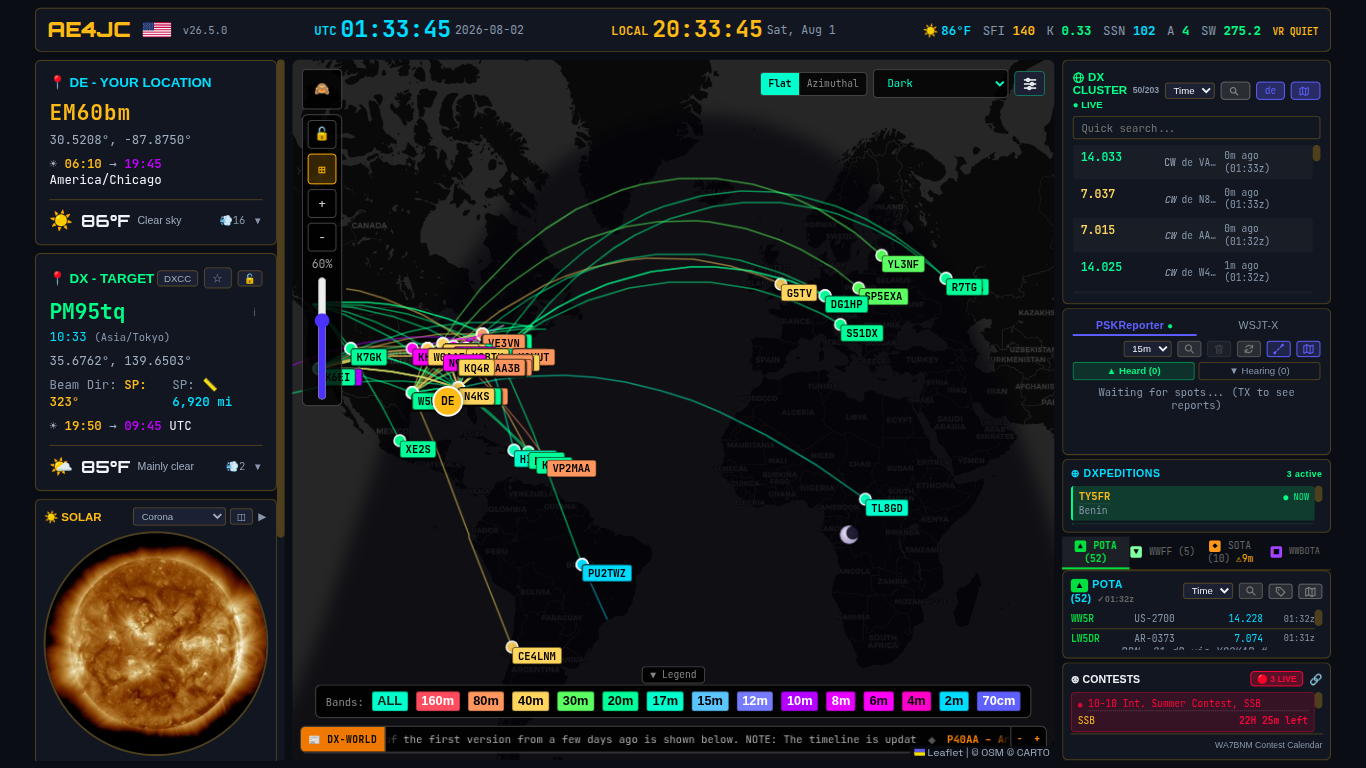
The end result: a repurposed 2011 Latitude booting straight into this, unattended, after a power cut.
Here’s the original X post on setting it up, along with the discussion that followed: https://x.com/mwfoutch1/status/2038314358200046059
Prerequisite: Linux
This assumes a working Linux install already in place. Starting from an old or underpowered laptop instead? See the Linux Setup guide first.
Prerequisite: Node.js 18+ and Git
The setup script checks for both and stops if either is missing. A fresh Mint/Ubuntu install has neither, so install them first:
curl -fsSL https://deb.nodesource.com/setup_22.x | sudo -E bash - && sudo apt-get install -y nodejs
sudo apt install -y git
Verify before continuing:
node --version   # v18 or higher
git --version
Install (Linux, systemd service)
curl -fsSL https://raw.githubusercontent.com/accius/openhamclock/main/scripts/setup-linux.sh | bash -s -- --service
nano ~/openhamclock/.env
The installer creates .env for you, so there’s no need to copy anything — just edit it. .env.example does sit alongside it and is worth a look regardless: it’s ~12KB of documented settings covering DX cluster sources, satellite TLE feeds, logger integrations, and units. Set your CALLSIGN and LOCATOR, then:
sudo systemctl restart openhamclock
Confirm it took:
grep -E '^(CALLSIGN|LOCATOR)' ~/openhamclock/.env
curl -sf http://localhost:3000/api/health && echo HEALTH_OK
Open http://localhost:3000 in a browser and hit F11 for full-screen — or run npm run electron for a native app feel instead of a browser tab.
Full Kiosk Mode (auto-start on boot)
The --service flag above auto-starts the server on boot. It does not auto-start the display — you’d still boot to a desktop and have to open a browser by hand.
Upstream does ship a real kiosk mode, but only for Raspberry Pi: setup-pi.sh --kiosk. The x86 setup-linux.sh accepts only --service and --help, and the Pi script targets port 3001 rather than the 3000 the Linux service uses. So on a normal PC or laptop you build this layer yourself.
These steps are for Linux Mint 22.3 with Cinnamon on X11, but adapt cleanly to most desktops.
1. Install the pieces
sudo apt install -y chromium unclutter
Chromium rather than Firefox on purpose: --disable-session-crashed-bubble and --noerrdialogs suppress the “Restore session?” prompt after an unclean shutdown. A shack display gets power-cycled, and you don’t want to come out to a dialog box sitting on top of your clock.
2. Create the launcher
cat > ~/openhamclock/kiosk.sh <<'EOF'
#!/bin/bash
URL="http://localhost:3000"
HEALTH="$URL/api/health"

# The desktop comes up before the Node server is ready on a cold boot.
# Wait for the server, or chromium lands on a connection-refused page.
for i in $(seq 1 60); do
    curl -sf "$HEALTH" >/dev/null 2>&1 && break
    sleep 1
done

BROWSER="$(command -v chromium || command -v chromium-browser)"
if [ -z "$BROWSER" ]; then
    echo "kiosk.sh: no chromium binary found" >&2
    exit 1
fi

FLAGS="--kiosk --noerrdialogs --disable-infobars --disable-session-crashed-bubble"
FLAGS="$FLAGS --disable-features=TranslateUI --check-for-update-interval=31536000"
FLAGS="$FLAGS --user-data-dir=$HOME/.config/openhamclock-kiosk"

if [ "$XDG_SESSION_TYPE" = "wayland" ]; then
    exec "$BROWSER" $FLAGS --ozone-platform=wayland "$URL"
else
    export DISPLAY="${DISPLAY:-:0}"
    xset s off
    xset -dpms
    xset s noblank
    command -v unclutter >/dev/null && unclutter -idle 1 -root &
    exec "$BROWSER" $FLAGS "$URL"
fi
EOF
chmod +x ~/openhamclock/kiosk.sh
bash -n ~/openhamclock/kiosk.sh && echo SYNTAX_OK
SYNTAX_OK confirms the whole file pasted intact. A long block like this can silently truncate mid-paste, and a half-written script fails in confusing ways later — check it now.
The wait loop is the part that matters. On boot the desktop session starts well before the Node server is ready, and without it Chromium launches into a connection-refused page and sits there forever.
3. Launch it on login
mkdir -p ~/.config/autostart
cat > ~/.config/autostart/openhamclock-kiosk.desktop <<EOF
[Desktop Entry]
Type=Application
Name=OpenHamClock Kiosk
Exec=$HOME/openhamclock/kiosk.sh
Terminal=false
X-GNOME-Autostart-enabled=true
EOF
cat ~/.config/autostart/openhamclock-kiosk.desktop
Confirm Exec= shows a real path and not a literal $HOME — .desktop files don’t expand variables at run time.
4. Autologin
Without this the machine stops at a login prompt after a power cycle and the display never comes up. Weigh that against the obvious tradeoff: anyone with physical access to the machine is straight into that account.
Easiest path is the GUI — Menu → Login Window → Users → Automatic login. Or write a drop-in directly:
sudo tee /etc/lightdm/lightdm.conf.d/99-autologin.conf >/dev/null <<'EOF'
[Seat:*]
autologin-user=YOUR_USERNAME
autologin-user-timeout=0
EOF
A drop-in rather than editing lightdm.conf keeps it reversible — delete the one file to undo it.
5. Stop the screen going dark
The xset calls in the launcher only cover the X server. Cinnamon’s own screensaver and power management will still blank and lock the display out from under it:
gsettings set org.cinnamon.desktop.session idle-delay 0
gsettings set org.cinnamon.desktop.screensaver lock-enabled false
gsettings set org.cinnamon.desktop.screensaver idle-activation-enabled false
gsettings set org.cinnamon.settings-daemon.plugins.power sleep-display-ac 0
gsettings set org.cinnamon.settings-daemon.plugins.power sleep-display-battery 0
gsettings set org.cinnamon.settings-daemon.plugins.power sleep-inactive-ac-timeout 0
gsettings set org.cinnamon.settings-daemon.plugins.power sleep-inactive-battery-timeout 0
The lock setting is the one that really bites. Default Mint blanks after 15 minutes and locks, so you’d walk out to a password prompt instead of a clock. Set the battery values too — a laptop with a tired battery can drop off AC without warning.
Running with the lid closed? Set HandleLidSwitch=ignore in /etc/systemd/logind.conf, or it suspends the moment you shut it.
6. Verify with an actual reboot
sudo reboot
Then leave it alone and let it come up untouched — logging in by hand invalidates the test. Expect a stretch of empty desktop while the wait loop does its job; that’s the mechanism working, not a failure.
On a 2011 Latitude E6420, measured: server healthy at 40 seconds after boot, fullscreen display at 83 seconds. The desktop login was the slow half, not Node — the server was ready a full 43 seconds before Cinnamon fired the autostart entry, so the 60-second timeout had plenty of margin.
Why Local Instead of the Hosted Site
OpenHamClock also runs instantly at openhamclock.com — no install needed, great for a quick look. A local install is worth the extra step for:
- A true dedicated full-screen kiosk display that auto-starts on boot
- Faster, smoother performance with zero web lag
- Better privacy — your callsign, location, and station data stay on your own hardware instead of a third-party site
- A display that keeps working even if the public site is slow or down
- Full customization and control
Real-World Notes
- Views best on a larger screen — there’s a lot going on with the display.
- With everything enabled, it’s a real load on an old repurposed laptop. Worth trying the full feature set first before turning anything off.
- Chromium logs a few errors on old hardware that look alarming and aren’t:
freedesktop_secret_key_provider(no keyring in the session),libva ... iHD_drv_video.so init failed(no hardware video decode, falls back to software), andPHONE_REGISTRATION_ERROR(Google push registration, irrelevant here). None affect the display. /api/healthreporting"unknown"for cluster, satellites, or propagation just means those optional upstream URLs are unset — defaults, not errors.- Putting the display machine on a Tailscale tailnet makes it far easier to maintain later. Updates and config changes happen over SSH instead of hauling a keyboard out to wherever the display lives.
- It is not localhost-only. Despite
HOST=localhostin.env, the server binds to0.0.0.0— verified withss -ltnpand by fetching/api/healthfrom a second machine, which returned HTTP 200. Anything on your LAN can reach the display athttp://<its-ip>:3000. That’s handy if you want to pull the clock up on a phone or another shack PC, but worth knowing rather than assuming otherwise. If you want it genuinely restricted, use a firewall rule — don’t rely on that.envsetting. - The WSJT-X UDP listener on port 2237 also binds to all interfaces, so WSJT-X does not have to run on the display machine. Point its UDP Server at the display’s IP and the PSKReporter panel fills in. Note WSJT-X sends to one address, so if a logger already consumes that stream you’ll want a multicast address instead of stealing it.
If this helps you, check out my adblob to support the work.